
User List
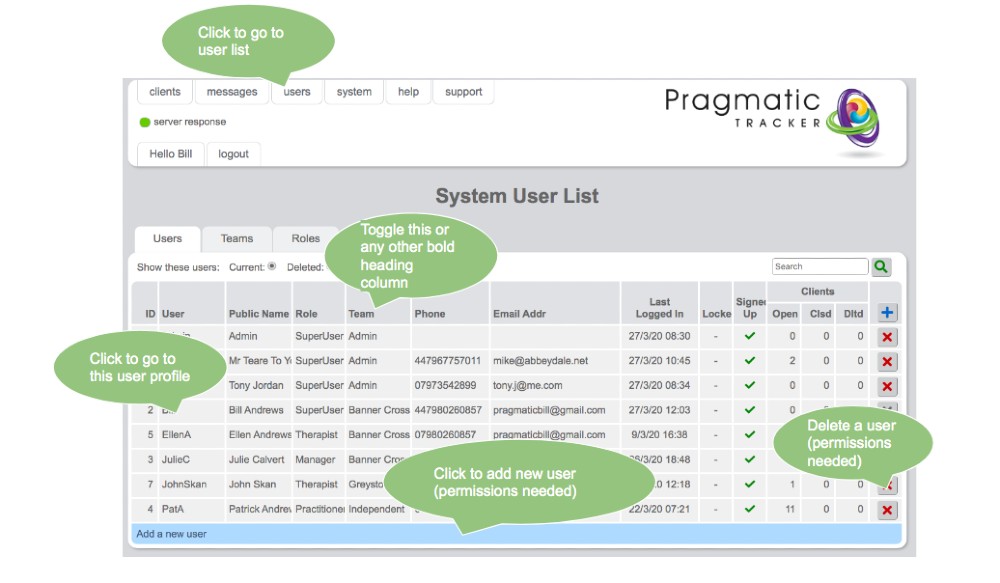
The User List shows all users in the system, including their public names, roles, teams, and case statistics.
Overview
The User List shows you a list of users in the system, including their public names, the roles they have allocated to them, and the teams they belong to. User contact details (telephone and email) will be available here if they have been completed by the user at sign-up. Details of their number of open, closed, and deleted cases are also provided.
Teams
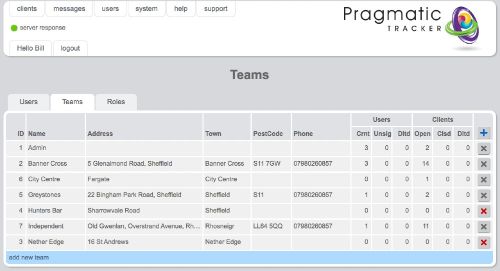
Every user must be assigned to a team (a team might be a group, a practice, a consortium, or whatever is set up). A user cannot be created without being a part of a team.
Roles
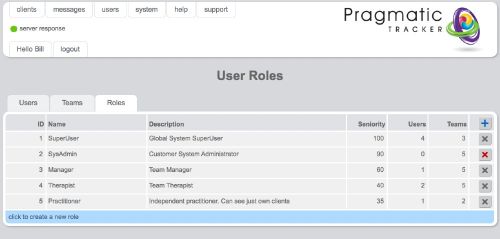
Within teams users play different roles. For example, a manager can see all other users and their clients in their team; a superuser can see all users and their clients in all teams. SolveFit Tracker comes with a set of standard roles but customers with bespoke systems can create their own roles with different permission structures.
Sorting and filtering
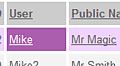
All columns can be sorted by clicking on the column headings (in bold) and lists can be filtered by team by clicking on any cell that changes colour when you hover over it. To clear a filter, click on the funnel symbol that appears when a filter has been applied.
Adding a new user
To add a new user click the small blue plus button at the right of the list headings, or click the blue bar at the bottom of the list. This will open up a new Create new user page.
Managing your user profile
Regardless of your role and privileges in the system you can edit your own user profile — to change your password or email address for example. In the banner at the top of the page, click the button showing your login name next to the logout button. This will open a new page where you can edit your user details.
Deleting users
If you delete a user with assigned clients you must re-assign the clients to a different user before you can book further sessions with them. Note that you cannot delete yourself!