
Reports & Data Extraction
A real strength of SolveFit Tracker is the ability to build new measures to meet a variety of needs. What goes in must come out to be fully useful — and the reports section is where you access that data.
Overview
All users with access to reports need to ensure they can access data in a manner useful to them. Often, summary data and total measure scores will suffice. Where all items of measures are required, or where large amounts of text need extracting, particular attention needs to be paid to how data appears in reports. Bespoke customised reports can be commissioned where standard reports do not meet your needs.
Testing your reports
Whatever measures you choose to work with, you must test how they extract to reports properly — they may not behave exactly as you expect. Always test with a small sample before relying on report output for clinical governance or research.
Report types
Client Report
One client per row. Captures client profile information, a summary of sessions, and total measure scores at first and final administration. Good for an overview of outcomes across your caseload.

Session Report
One session per row. Client profile information can be repeated on every row. Total scores for specific or all measures available. Good for analysing change across sessions or comparing session-level data.

Usage Report
Highlights system activity. Available in larger installations. Downloads as CSV.

Bespoke customised reports
Available for researchers and services needing complex data analysis. Please contact us to discuss your requirements.
Using the Select Report page
The Select Report page is available at the bottom of the summary panel to the left of the client list. Standard installations come with two reports by default: the Client Report and the Session Report.
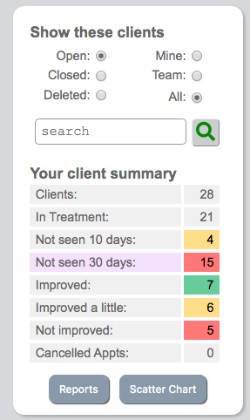
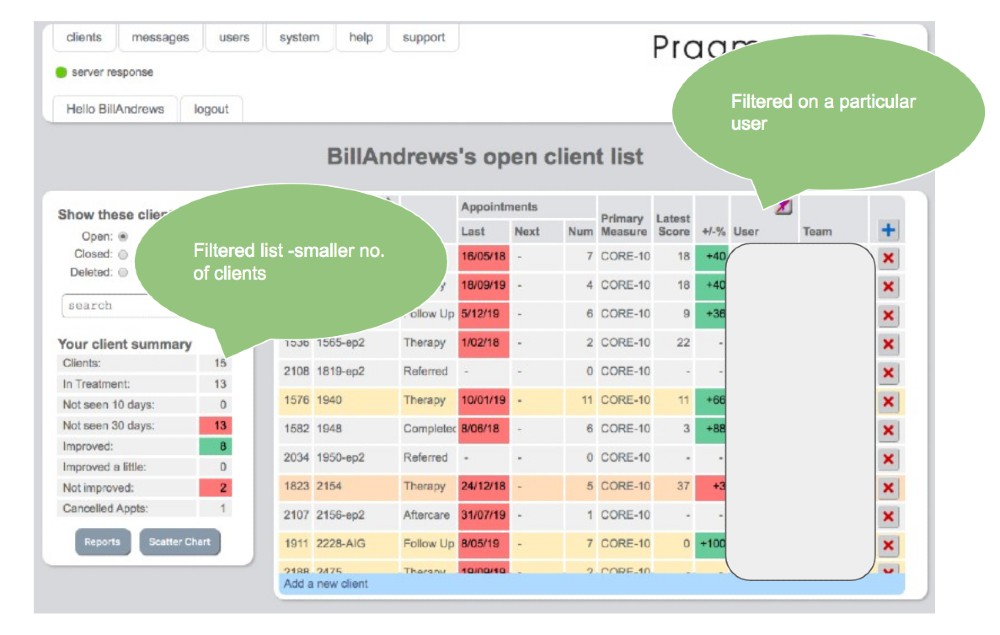
- Filtering — the client list can be filtered (e.g. by user or date range) to reduce to a subset of clients. Reports will be generated on the filtered selection only.
- Downloading — clicking Open generates the report and opens a download window. Reports download as CSV files which open directly in Excel or Google Sheets.


Data volume warning
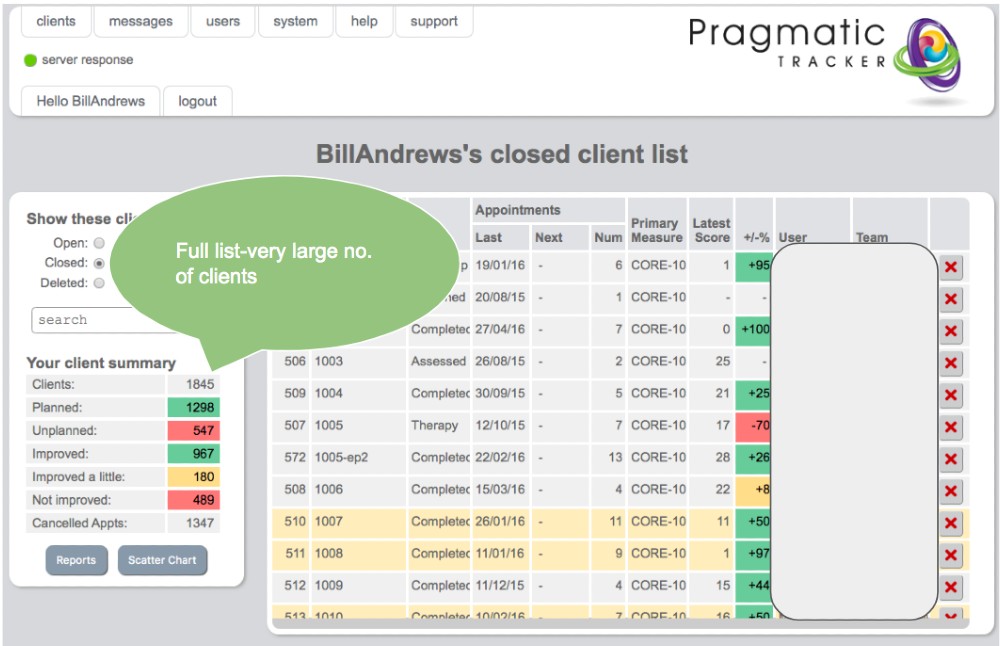
Always be mindful of data volume. A report may run well with 50–100 clients, but with several hundred to thousands of clients, web-based report generation can become limited. Use different teams for different projects and combine with date range filtering. Attempting to extract all data for all clients at once may not be feasible.
Offline options
Where you need to process data in a different environment, a MySQL data extraction can be requested. The data can then be processed by personnel with relevant technical skills. Note that external reporting services are not offered by our team — the extraction is provided for you to work with independently.