Edit User Profile
All the details you enter when you first sign up are stored in your user profile. Any changes can be made here at any time.
Accessing your profile
In order to update or edit your user profile, change your password, or view your terms of use and user consent, you need to access your user profile. Do this by clicking on your username at the top of the page.
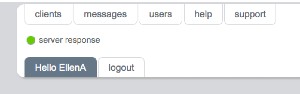
Edit user profile page
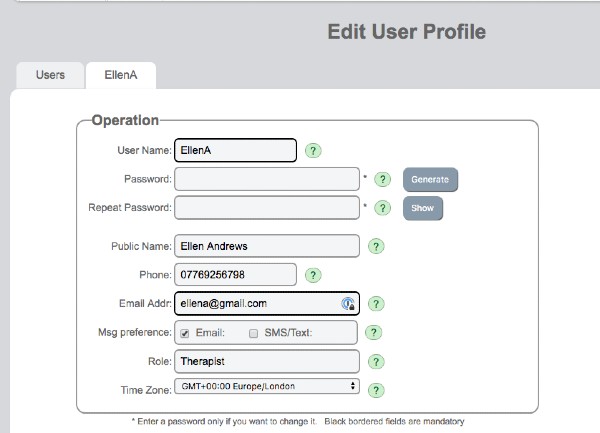
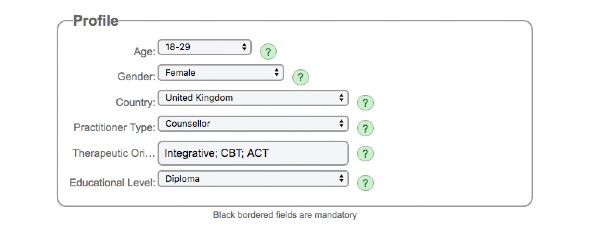
Message preference
This refers to how you wish SolveFit Tracker to alert you if you have any unread messages waiting for you to read.
Changing your password
Your password is your gateway into SolveFit Tracker. It is very important that it is secure and that you protect it. If you do NOT wish to change your password simply leave the password field blank — the original password is stored securely. To create a new password it must contain at least:
- Upper case letters (A–Z)
- Lower case letters (a–z)
- Numbers (0–9)
- Special characters (!,$,&,*,@,#)
- At least 8 characters long — preferably much longer
Public name
This is the name you are typically known by and is used by SolveFit Tracker in communication with your clients.
Phone & email
SolveFit Tracker uses your phone and email address as the means of confirming your identity if you need to re-set your password. We recommend you enter your mobile phone number with no spaces.
Editing your email messages
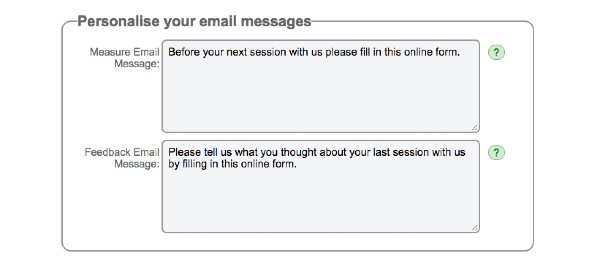
If you use the automatic message sending facility, your emails will be sent with the standard message you see here. If you want to edit it so it reads differently, this is the place to do so. Email invitations to outcome measures go out typically around 30 hours before an appointment, and email invitations to feedback measures go out typically around 2 hours after appointments.
Terms of Use and User Consent
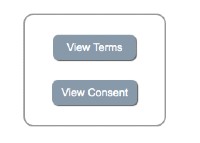
Simply click on the appropriate button to view and download PDFs of the Terms of Use and User Consent documents.