
Create New User
This is how managers, system administrators, superusers, or other users with suitable permissions can add new users to the system.
Accessing the create user page
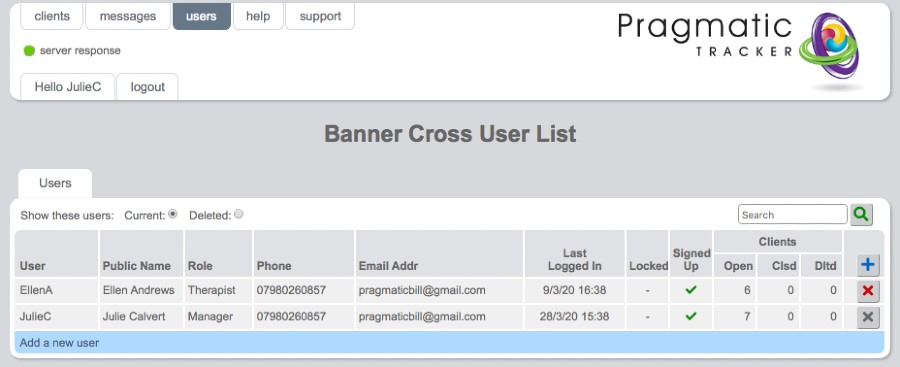
From the User List page, clicking on the blue bar Add new user brings you to the Create new user page.
Users – Teams – Roles
Any new user to be added to a system must be a member of a specific team and must have a specific role allocated to them. So, the first step with adding a new user is to think about what team they will belong to and what role they will have in that team.
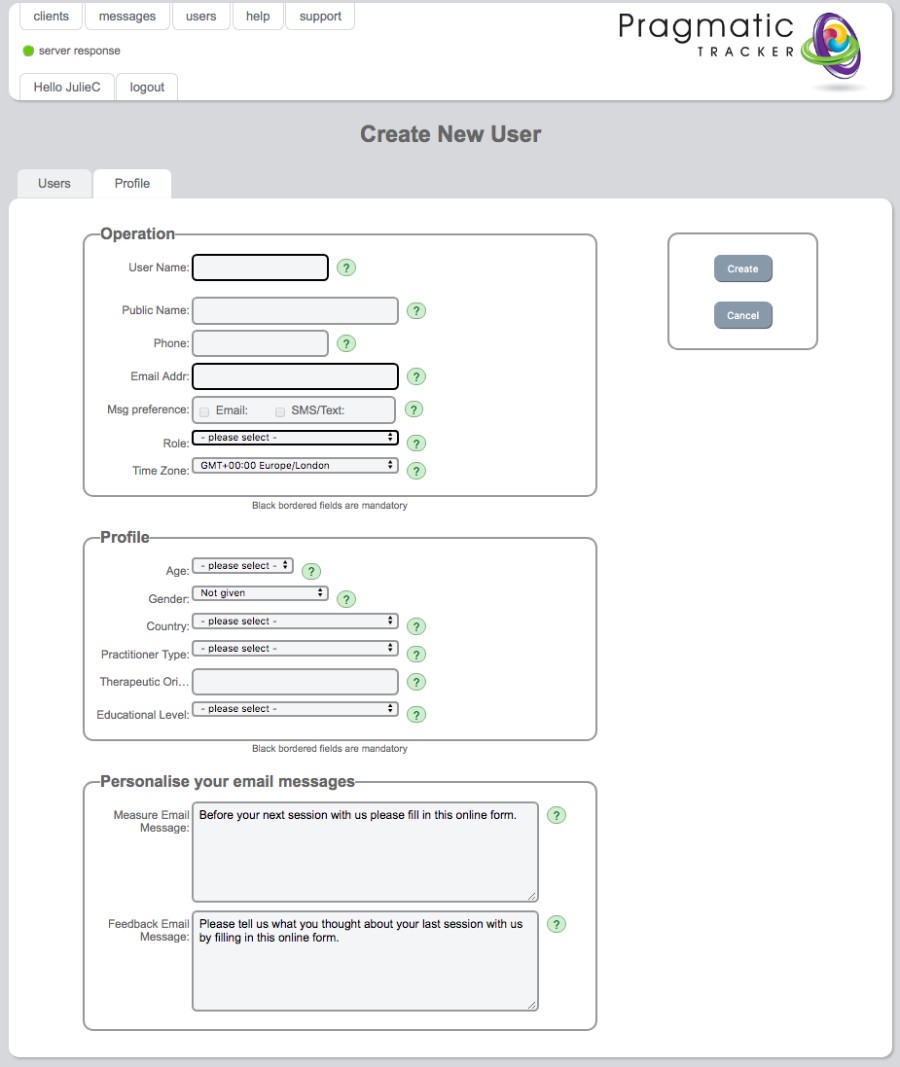
Mandatory fields
All mandatory fields have a solid black border. These are the minimum fields needed to invite a new user:
- Username — the name used to login. Should be short and easy to remember. Can only later be edited by a manager or someone with suitable permission.
- Email Address — used to send the invitation to the new user to sign up.
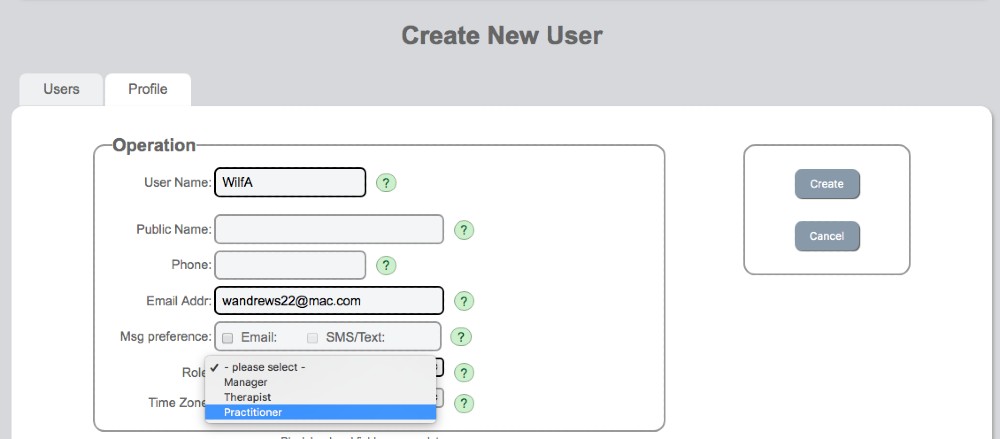
- Role — the role to be allocated. A manager can invite a new user to the role of manager, therapist, or practitioner (roles at the same level or lower than themselves).
Optional fields
All optional fields have a light grey border. The remaining fields can be filled in by the new user once they have signed up. Public Name — the name by which the user will normally be known by clients — is optional but typically recommended.
Sending the invitation
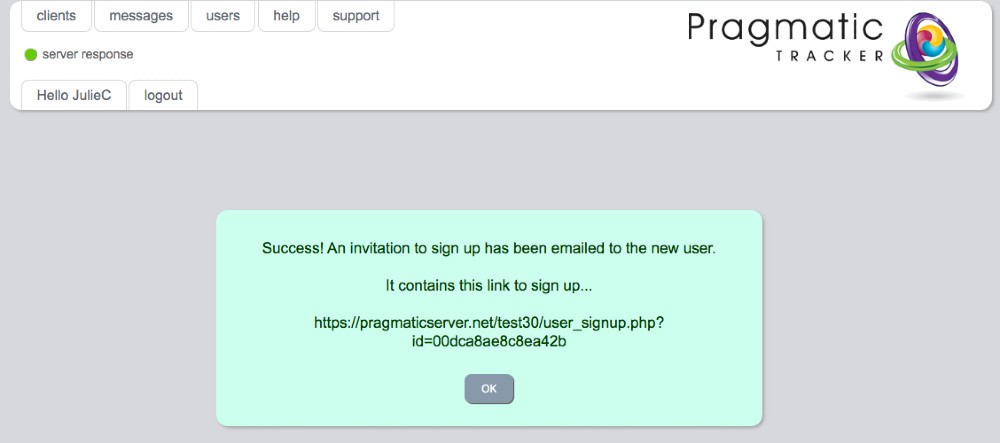
When the mandatory fields have been completed, clicking Create will activate sending of the email invitation to the new user to sign up.
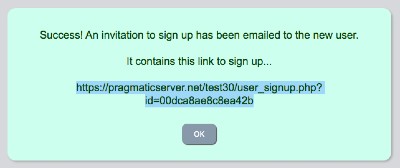
Using the sign-up link
Depending on your organisation's protocol, you may wish to send the link out along with more information to the new user. Providing the link here makes this possible. Furthermore, sometimes initial email invites can go to junk or spam — having the ability to send the sign-up link directly can help to avoid sign-up problems.