
Client Profile
The client profile holds all the background information for a client and is where you begin when adding a new client to SolveFit Tracker.
Adding a new client
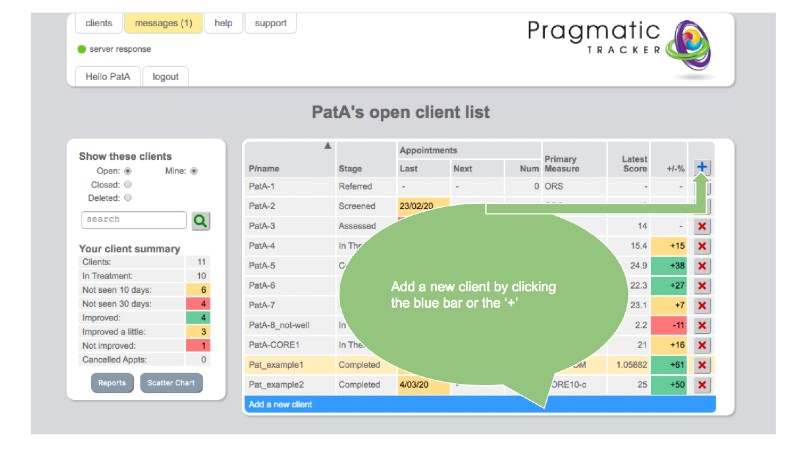
When you wish to add a new client you simply click on the blue bar or the + sign. The client profile includes basic background details of the client that might be relevant to their case. This is how a new client is created in the database and you would normally begin to fill in this form when the client first makes contact. The data can be referred to, edited and used at any time throughout therapy.
Confidentiality and privacy
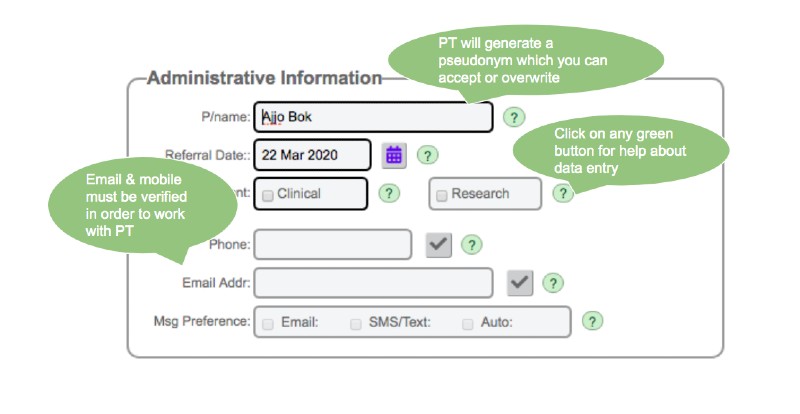
When you enter a new client the system will create a new, unique pseudonym. You can accept this or over-type a new pseudonym of your choosing or the client name. In some systems you will get a reminder message if you edit a client's pseudonym.
Also to protect privacy, depending on your organisational circumstances, the client's email address can be hidden once the client profile page has been saved.
Demographics in Client Profile
By default, single and small group systems offer a certain range of fields for common demographics. This can be used, or ignored if not relevant. Additional fields can be added to larger bespoke systems, using single- or multiple-choice drop-down selections, dates, numbers or free-text fields.
Risk
You have 4 options available to you, from the default of none to severe. A dropdown text box appears providing the opportunity to write any relevant information about the risk.
Notes
You can add notes here and anywhere in SolveFit Tracker where you see a similar text box. We encourage you to be mindful of entering anything that could identify your client. Any notes you enter, both in this profile section or in session notes afterwards, will be available to view in the Client Summary page.
Measures
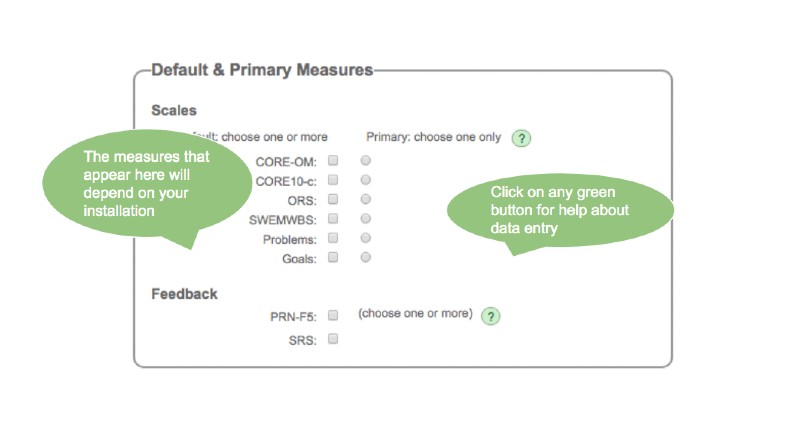
Depending on the configuration of your system, a range of measures may be used during regular treatment sessions. You may select as many as are required, but you should choose one as the primary measure — used to indicate the client's progress in your client list and in various summaries throughout the system. Usually it will make sense to choose the measure that demonstrates the greatest level of distress as the primary measure. As this may not be known at the outset it can be altered in Profile at any time.
Closing a client
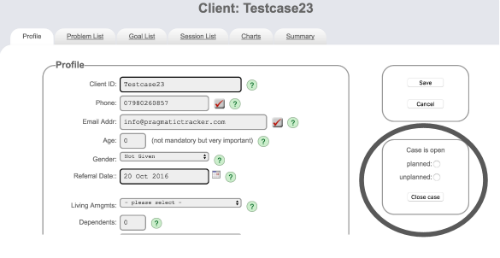
Generally when a client's treatment has ended it is useful to close their case. The client no longer appears in your current client list but SolveFit Tracker retains all the treatment data and you can see it via your closed client list.
When closing a case, click on Profile and you will see the relevant section on the right side of the screen. Select either planned or unplanned and click the Close Case button.
In most systems we typically allow up to 30 open cases but you can purchase more if you prefer.
Re-opening a client
Once a client has been closed you can make no further changes to their treatment record. If you need to make changes — if the client returns to treatment for instance — you must re-open the client case. Open the client's profile page and click the Re-open button. You may then continue to add more sessions.
Practitioner Assignment
Regular practitioners may only assign clients to themselves and this is done when they first enter the client into the system. Administrators with the correct permissions may screen clients before allocation to other practitioners for assessment. They, in turn, with the correct permissions, may re-allocate to regular practitioners.

Editing a client's email on Apple computers
To edit a client's email you first need to delete the old one, even if you can't actually see it. On PC computers use Delete or Backspace. On Apple computers hold down the fn key while clicking Backspace.