
Problems Scoring
Once problems have been set up for a client, the client scores each problem at the relevant sessions to track progress over time.
How clients score problems
Problems are scored by the client on a severity scale from 0 (not troublesome at all) to 10 (very severe). The client scores their individual problems in the same way they would complete any other measure — either in session on the SolveFit Tracker interface, or remotely via an emailed link.
Each problem label and detail is displayed to the client exactly as you entered it in the problem form. For this reason, it's important to use the client's own words and write problem details in the first person.
Ensuring problems appear in a session
For problems to appear in a session record, two things must be true:
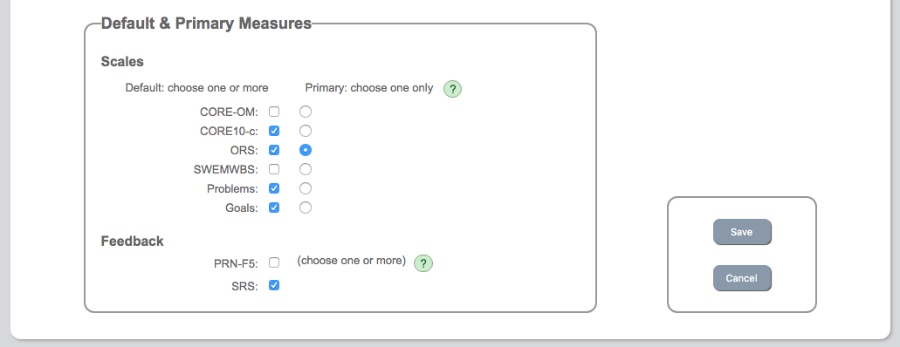
- The Problems measure must be selected for that session (either in the appointment form or via the default setting in client profile)
- The date the problem was raised must match the session date it was recorded in
Viewing scores on the chart
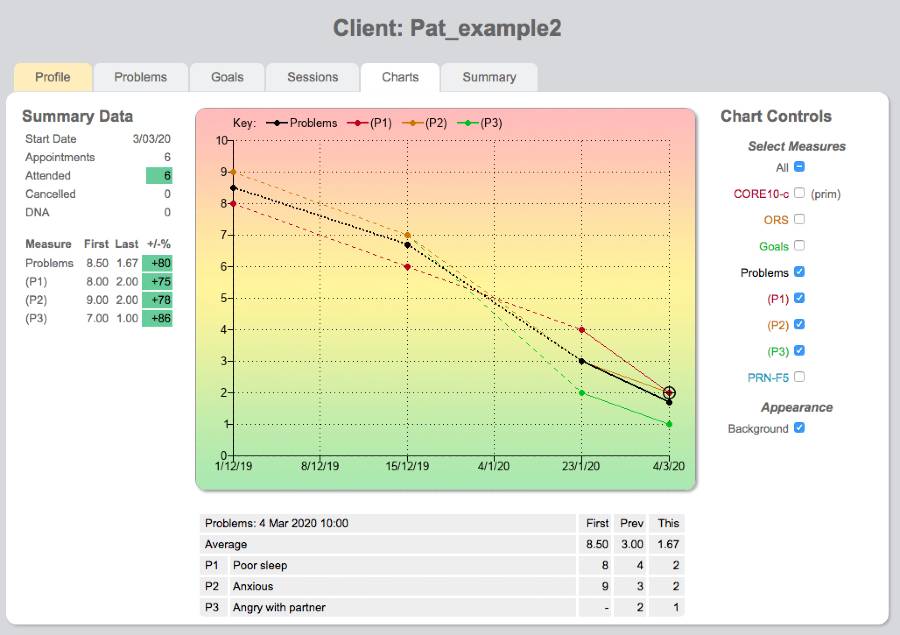
Problem scores can be viewed on the progress chart alongside any other measures. You can view the aggregated problems score or the individual problem lines, giving maximum flexibility in how you discuss progress with your client.
The scoring table
Clicking on any scoring point on the chart will open the table below the chart. This table displays the first score (the first time the client scored the 'problem'), the 2nd to most recent score, and the most recent score — allowing you and your client to track change over time.
Getting the dates right
SolveFit Tracker defaults to today's date when you raise a problem. If you're writing up notes the day after a session, make sure to manually set the problem date to match the session date, otherwise the problem will not appear on that session form.