Session Form
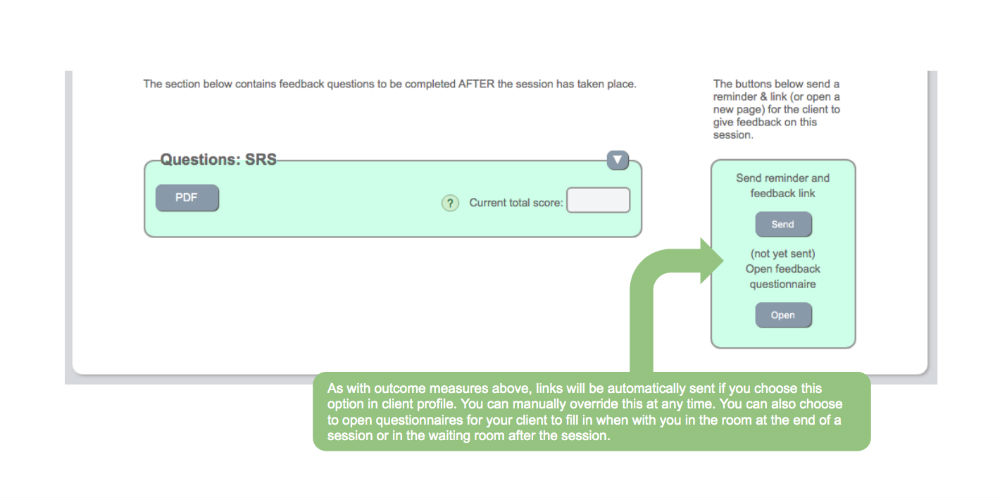
The session form is where you record notes and attendance for a session, manage measures, and control automated reminders and feedback links.
Opening a session form
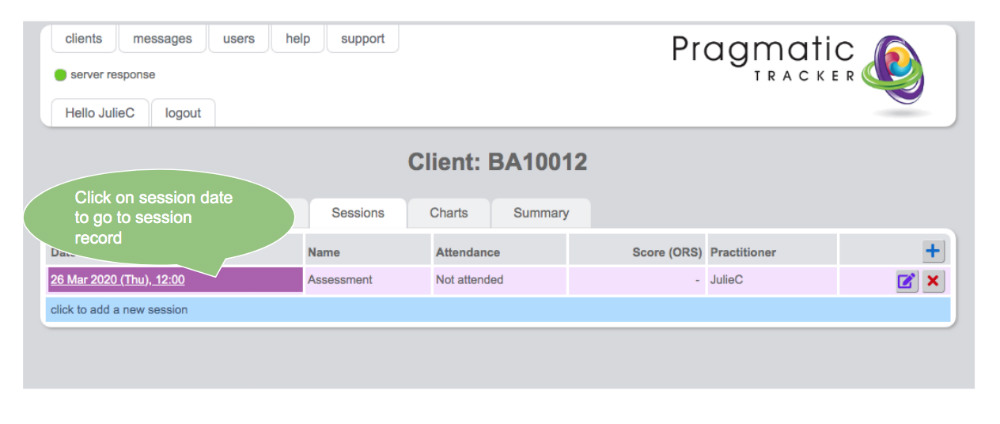
To access the session form for any particular session simply click on the session date in the session list.
Session form
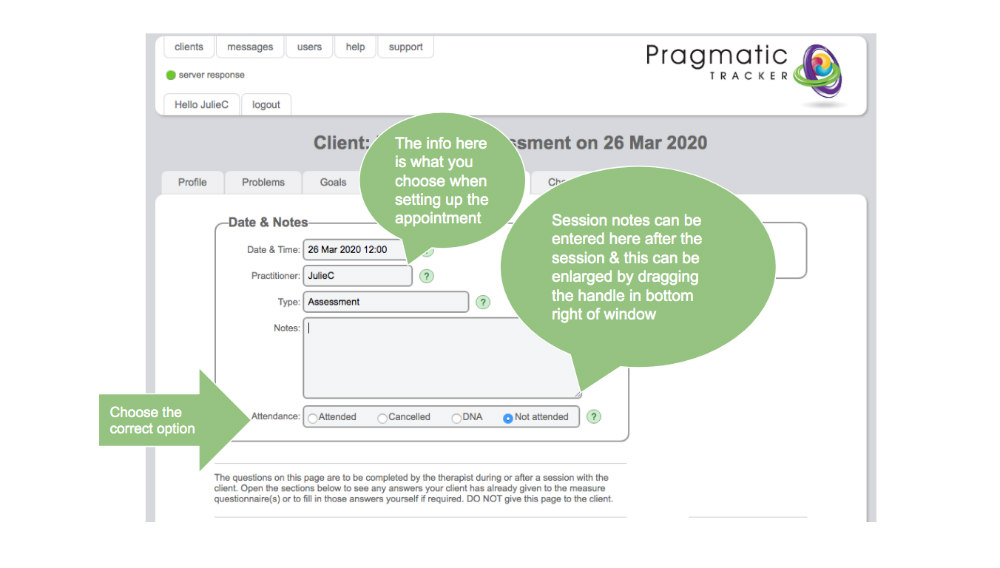
The session form will be pre-populated with the information you provided when setting up the appointment. You can return here after the appointment to enter any notes and to choose the correct entry regarding attendance. You can increase the size of the notes window by dragging the handle on the bottom right.
Correcting an appointment
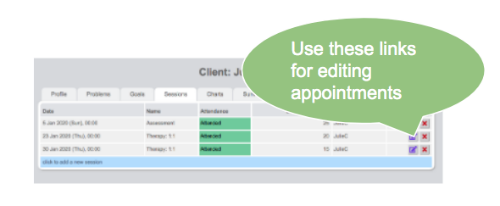
If you realise you made a mistake when setting up the appointment (e.g. incorrect date, wrong practitioner assignment, session type or measures) you need to return to the appointment form. Access this from the session list page, make any necessary edits and save.
Editing an appointment
Measures
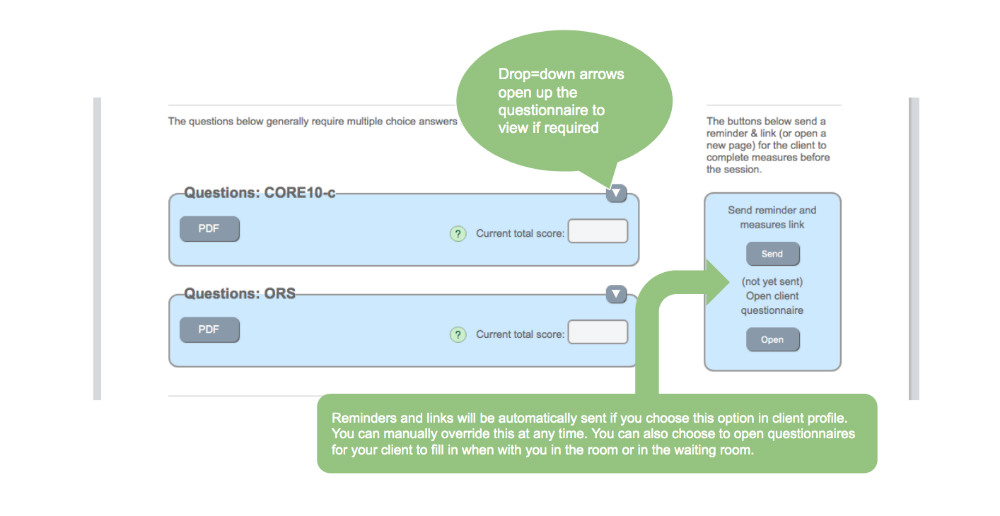
The right side of the session form provides the controls for either opening measures directly in SolveFit Tracker for the client to fill in at or before the start of a session, or to send reminders and links by SMS or email to a client before the session.
Automatic reminders
If you have chosen Auto in client profile the reminders and links will be sent automatically at a fixed time before and after sessions.

Feedback
The right side of the session form also provides the controls for either opening feedback forms directly in SolveFit Tracker for the client to fill in at or after the end of a session, or to send links by SMS or email to a client after the session.