
Goal List
The goals feature facilitates the creation of a unique client-specific measure based on the client's own view of their goals — in their own words.
Working with goals
SolveFit Tracker is a valuable tool in helping practitioners, case workers, clinicians and coaches to keep the focus around the needs of their clients. The Goals feature allows you to measure the goals as set by your clients — giving them a voice in their own progress.

More recently, a growing body of literature has emerged in this area and, in particular, the work of Professor Duncan Law around Goal-based outcomes. SolveFit Tracker uses the 'Goals' feature in line with this approach.
Overview
This feature facilitates the creation of a unique 'client-specific' measure based on the client's own view of their goals. It provides the opportunity for the client to articulate their goals in their own words, labelling the goals, providing additional detail, and scoring where they now are from 0 (not at all met) to 10 (reached) with an anchor point at 5 (half way).
How to begin
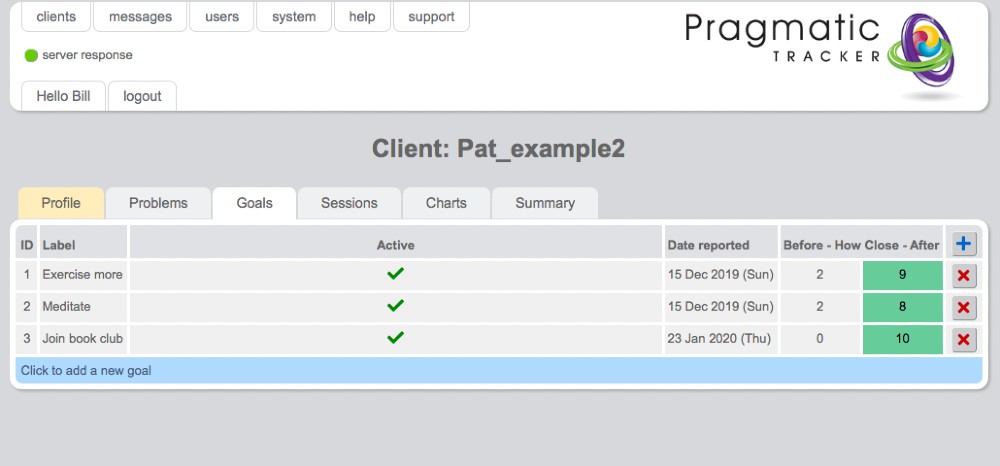
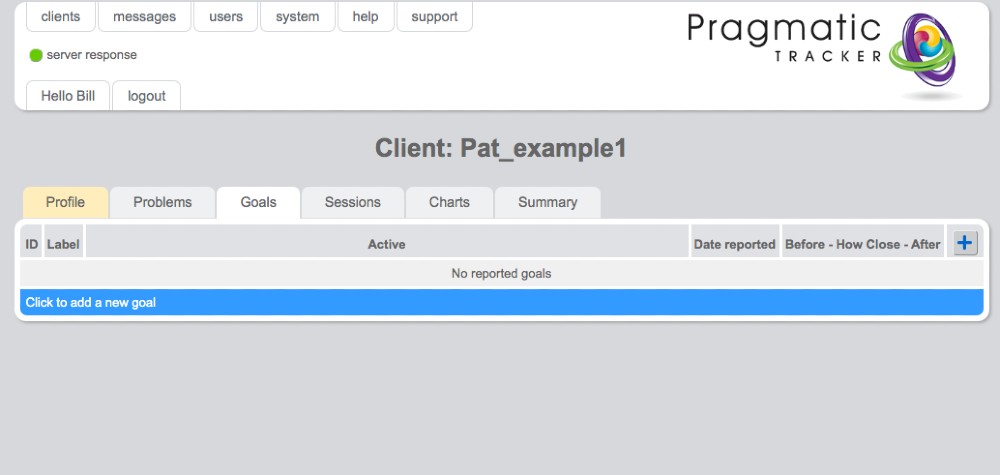
Ask your clients to describe their goals in their own words and to score where they now are (0–10). If you wish to have scores available for the session you recorded them in, make a note of these initial scores to enter them afterwards. Then access the Goals tab. The first time you do so will look like this:
Goals on the chart
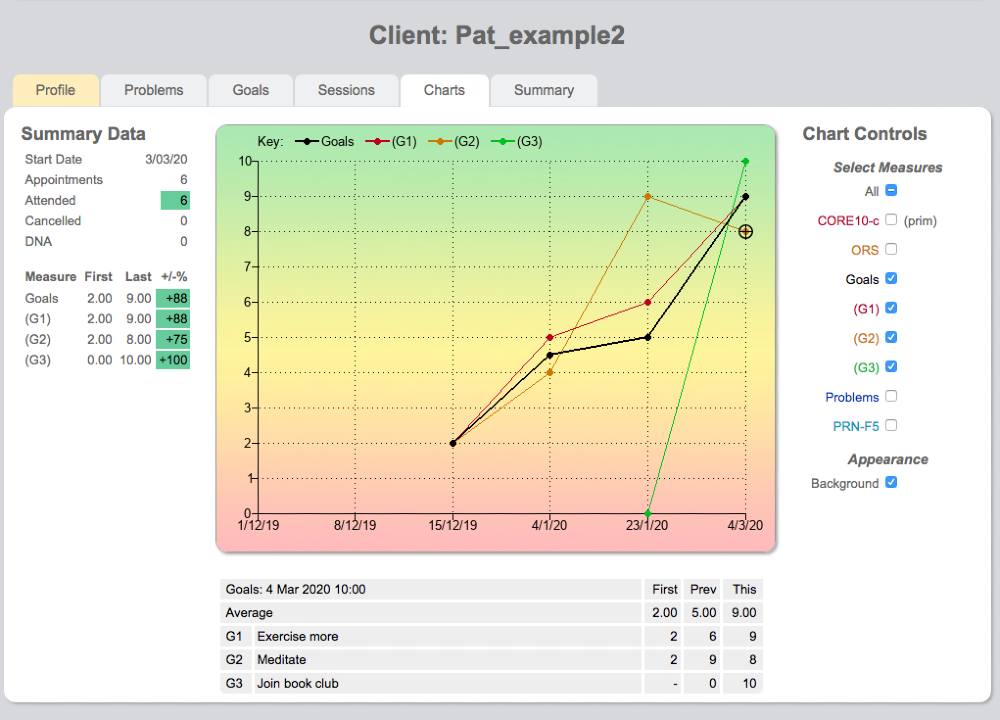
The 'goals' measure that you create displays like any other measure on the chart. You can view it as an aggregated score and also view the individual goals.
Entering goals
To start the process simply click on the blue bar — Click to add new goal. This will take you to the Goal form where you can add the new goal(s).
Goals: aggregate & individual
Displaying the goals on the chart offers lots of flexibility. You can view the aggregated goal score as one line; you can view some or all of the individual goal score lines; and you can switch off the aggregate score completely if you wish. This gives maximum flexibility in where you wish to focus attention with your client.
The table
Clicking on any scoring point on the chart will open the table below. This table displays the first score (the first time the client scored the 'goal'), the 2nd to most recent score, and the most recent score.