
Goal Form
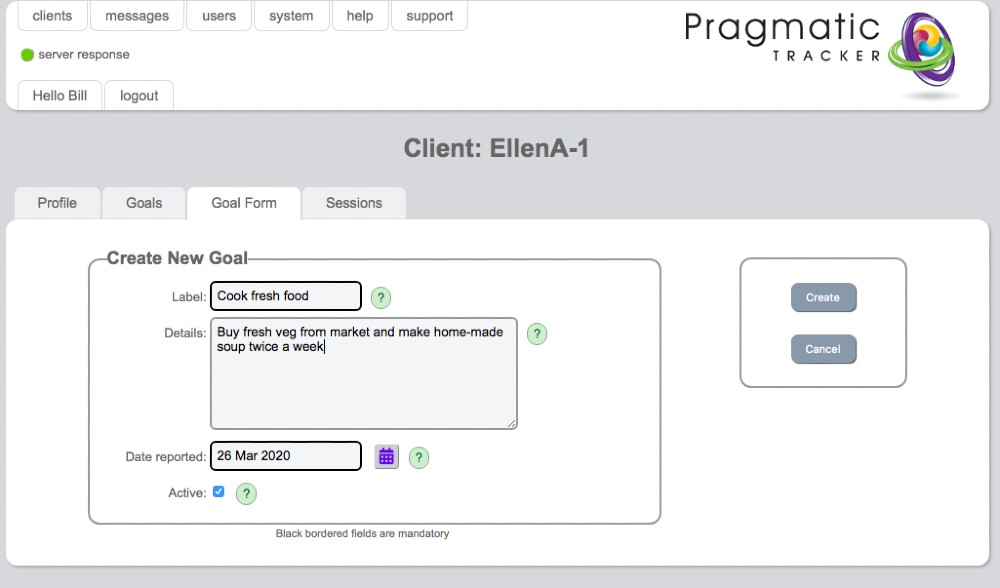
The goal form is where you add or edit a client's individual goals, capturing the label, detail and date.
Adding a new goal
Here you may add or edit a goal, asking the client for an appropriate label and capturing more detail if you wish.
Tip
Remember to tick 'goals' on the appointment form for any session you wish to record goals in. You can also tick 'goals' in Profile so that it is always ticked by default in every session.
Important: Matching dates
The date a goal is raised MUST be the SAME as the date of the session it's raised in. Otherwise it will NOT appear on the session form.
Getting the dates right
The first time you want to use the goals feature it's important that the date you create the goal matches the session date you recorded the goal in. SolveFit Tracker defaults to 'today's' date. This is no problem if you write your notes up on the same day as a session, but if you're adding a goal the day after a session, you must make sure the date the goal is reported is the same as the session date.
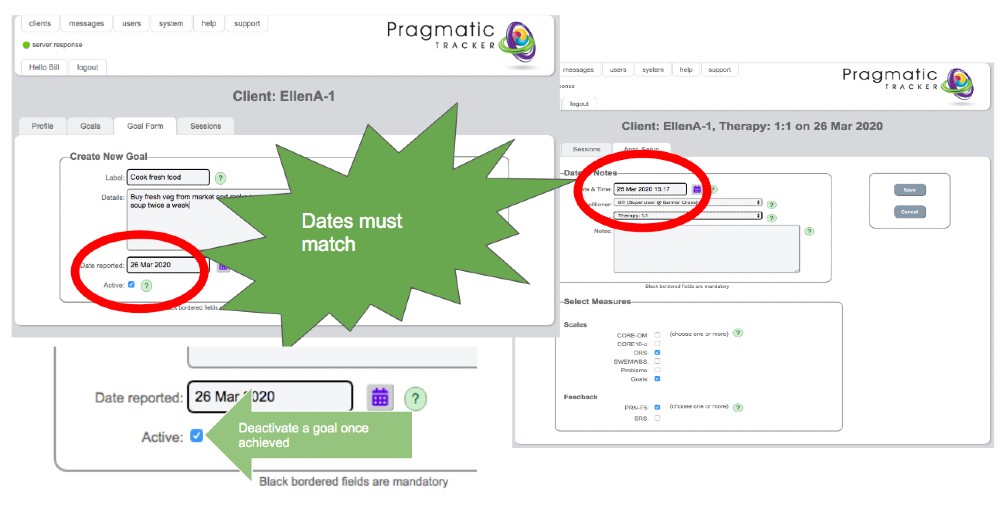
Common issues with Goals
You must make sure that you have selected 'Goals' for any particular session you want to record their scores in:
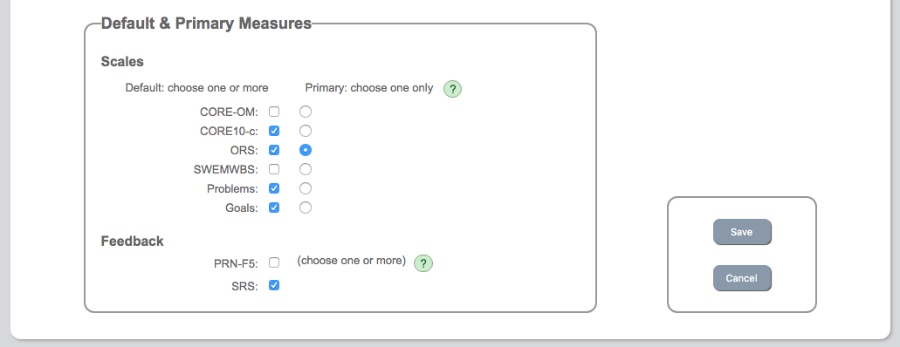
AND you MUST make sure that the date the goal is raised matches the date of the session.
Deactivating a goal
Perhaps a client has reached a particular goal, or perhaps they don't wish to work on it right now. You can deactivate it by simply unticking the little box on the goal form. The goal will no longer appear on session forms but its historical data is preserved.
Using the client's own words
Remember that you are, in effect, building a new 'measure' labelled 'Goals' for your client. Each 'goal' raised becomes an item in the measure. Whatever you write as the goal label and goal details is what will be seen by your client when they next score the goal item. The words should be the client's words and the detail should be in the 1st person.